
# 구현하고자 하는 것
- 캐릭터가 이벤트 오브젝트 앞에서 z키 입력 시 대사 이벤트 발생
# 플레이어 수정
- InteractionController.cs
using System.Collections;
using System.Collections.Generic;
using UnityEngine;

public class InteractionController : MonoBehaviour
{
    bool isInteractive = false; // 상호작용 가능 오브젝트에 접촉하는 최초의 순간에 true로 변경
    bool ZClickedInteractive = false; // 상호작용 가능 오브젝트를 클릭했는지

    RaycastHit2D hit;
    public GameObject scanObj;

    DialogueManager theDialogueManager;
    PlayerAction thePlayerAction;

    void Start()
    {
        theDialogueManager = FindObjectOfType<DialogueManager>();
        thePlayerAction = FindObjectOfType<PlayerAction>();
    }

    void Update()
    {
        if (!ZClickedInteractive)
        {
            CheckObject();
            ZClick();
        }
    }

    public void CheckObject() // z 클릭으로 바꿔야 함
    {
        Debug.DrawRay(thePlayerAction.rigid.position, thePlayerAction.dirVec * 1.2f, new Color(0, 1, 0));
        hit = Physics2D.Raycast(thePlayerAction.rigid.position, thePlayerAction.dirVec, 1.2f, LayerMask.GetMask("EventObj"));

        if (hit.collider != null) // 사물을 스캔함
        {
            scanObj = hit.collider.gameObject;
            Contact();
        }
        else // 스캔된 사물이 없음
        {
            scanObj = null;
            NotContact();
        }
    }

    void Contact() // 물체를 스캔했을 때 실행
    {
        if (!isInteractive)
        {
            isInteractive = true;
        }
    }

    void NotContact()
    {
        isInteractive = false;
    }

    public void ZClick() // z키로 상호작용 했을 때 Interact 함수 호출
    {
        // 이벤트 동안, 다른 상호작용 막기
        if (!ZClickedInteractive)
        {
            if (Input.GetKeyDown(KeyCode.Z) && scanObj != null)
            {
                if (isInteractive)
                {
                    Debug.Log(scanObj.name);
                    Interact();
                }
            }
        }
    }

    void Interact() // 상호작용한 오브젝트의 대사 이벤트를 꺼내옴
    {
        ZClickedInteractive = true;
        theDialogueManager.ShowDialogue(hit.transform.GetComponent<InteractionEvent>().GetDialogue());
    }
}
# 대사 엑셀 파일 작성
- csv 파일로 저장
- csv 파일은 ,로 구분하기 때문에 , 대신 특수문자로 대체 -> 유니티에서 치환함
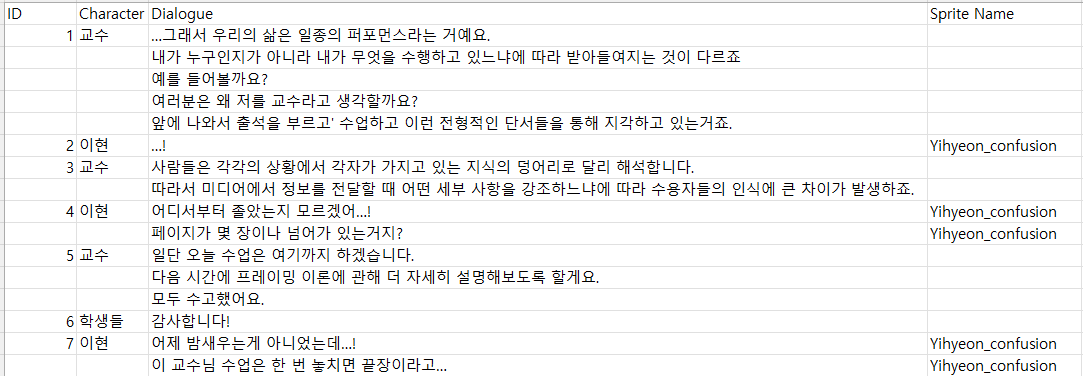
- csv로 저장한 파일을 메모장으로 다시 연 후 맨 마지막 줄 공백을 지운다 -> IndexOutOfRangeException 방지
- csv 파일을 수정할 때마다 이 작업을 반드시 해줘야함
- Asset 파일 안에 Resources 파일을 만든 후 대사 파일을 옮긴다
# 대사 이벤트 스크립트 작성
- Dialogue.cs
Dialogue 커스텀 클래스
[System.Serializable]
public class Dialogue
{
    [Header("스탠딩 일러스트")]
    public Transform tf_standing;

    [Tooltip("캐릭터")]
    public string name; // 캐릭터 이름

    [HideInInspector]	// 인스펙터 창에서 변수를 숨긴다.
    public string[] contexts; // 배열이라 여러 대사를 담을 수 있다.

    [HideInInspector]
    public string[] spriteName; // 여러 개의 스프라이트 이미지
}
DialogueEvent 커스텀 클래스
[System.Serializable]
public class DialogueEvent
{
    public string name;     // 대화 이벤트 이름
    public Vector2 line;	// 대사 줄
    public Dialogue[] dialogues;	// 대사 배열
}- InteractionEvent.cs
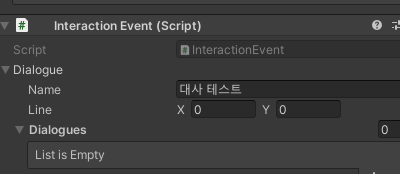
Scripts 폴더 내에 Interaction 폴더를 생성 후 작성
public class InteractionEvent : MonoBehaviour
{
    [SerializeField] DialogueEvent dialogue;

    // DatabaseManager에 저장된 실제 대사 데이터를 꺼내온다.
    public Dialogue[] GetDialogue()
    {
        DialogueEvent t_dialogueEvent = new DialogueEvent();    // 임시 변수
        t_dialogueEvent.dialogues = DatabaseManager.instance.GetDialogue((int)dialogue.line.x, (int)dialogue.line.y);

        for (int i = 0; i < dialogue.dialogues.Length; i++)
        {
            // dialogueEvent에 넣은 Standing Image 오브젝트를 임시 변수에 넣기
            t_dialogueEvent.dialogues[i].tf_standing = dialogue.dialogues[i].tf_standing;
        }

        // 원본에 임시 변수 덮어쓰기
        dialogue.dialogues = t_dialogueEvent.dialogues;

        return dialogue.dialogues;
    }
}
InteractionEvent.cs 파일을 메인 캐릭터에 추가
- DialogueParser.cs
using System.Collections;
using System.Collections.Generic;
using UnityEngine;

public class DialogueParser : MonoBehaviour
{
    public Dialogue[] Parse(string _CSVFileName)
    {
        List<Dialogue> dialogueList = new List<Dialogue>(); // 대사 리스트
        TextAsset csvData = Resources.Load<TextAsset>(_CSVFileName);    // CSV 데이터

        if (csvData == null)
        {
            Debug.LogError("CSV file not found: " + _CSVFileName);
            return null;
        }

        string[] data = csvData.text.Split(new char[] { '\n' });    // 엔터 단위로 대사 쪼개기

        for (int i = 1; i < data.Length;)   // data[0] = {'ID', '캐릭터 이름', '대사'}
        {
            string[] row = data[i].Split(new char[] { ',' });   // , 단위로 쪼개기

            Dialogue dialogue = new Dialogue(); // 캐릭터 한 명의 대사들

            dialogue.name = row[1];
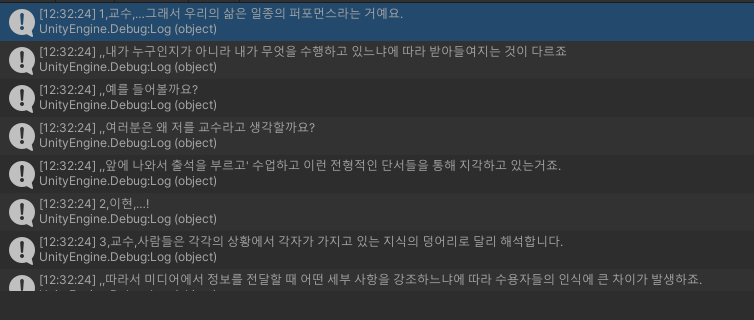
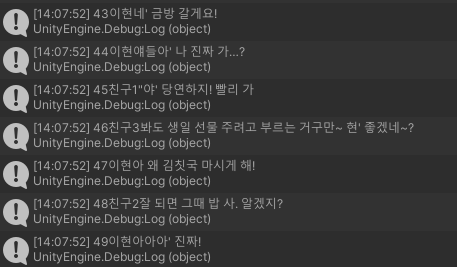
            Debug.Log(row[1]); // 디버깅
            List<string> contextList = new List<string>();
            List<string> spriteList = new List<string>(); // 사진리스트

            do
            {
                contextList.Add(row[2]);
                Debug.Log(row[2]); // 디버깅
                spriteList.Add(row[3]); // 엑셀 3번째 내용

                // 다음 줄 미리 비교
                if (++i < data.Length)
                {
                    row = data[i].Split(new char[] { ',' });
                }
                // 다음 줄이 데이터 보다 길어지면 그냥 break
                else
                {
                    break;
                }
            } while (row[0].ToString() == "");  // 다음 줄 캐릭터 이름이 공백이면 대사를 더 채우기

            dialogue.contexts = contextList.ToArray();   // 리스트를 배열로
            dialogue.spriteName = spriteList.ToArray();
            dialogueList.Add(dialogue); // 한캐릭터가 다른 캐릭터가 말하기 전까지 모든 대사들이 묶여서 추가됨
        }

        return dialogueList.ToArray();
    }
}
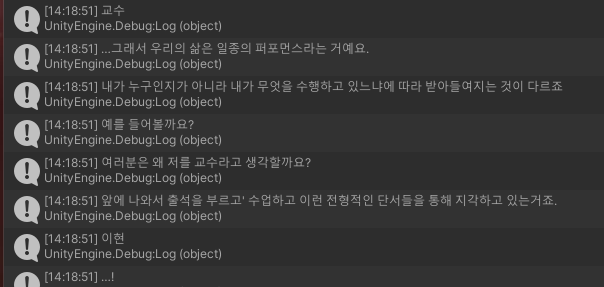
- 빈 오브젝트Manager를 생성
- Manager에 DialogueParser.cs를 추가
- 쉼표 단위로 대사 쪼개기
- 캐릭터 별로 대사 묶기
name에 row[1] 할당
context에는 row[2]를 바로 할당할 수 없기 때문에, List인 contextList를 새로 생성
do-while문 안에서 캐릭터의 첫 대사를 contextList에 할당
다음 대사의 id가 비어있으면, 계속 그 캐릭터의 대사를 contextList에 할당
- 캐릭터 스프라이트
- Sprite Manager.cs
using System.Collections;
using System.Collections.Generic;
using UnityEngine;
using UnityEngine.UI;

public class SpriteManager : MonoBehaviour
{
    [SerializeField] float fadeSpeed; // 이미지를 서서히 자연스럽게 변경

    bool CheckSameSprite(Image p_image, Sprite p_sprite) // 스프라이트가 같은지
    {
        if (p_image.sprite == p_sprite)
            return true;
        else
            return false;
    }

    // p_target: 어떤 이미지를 변경할 것인지, p_spriteName: 어떤 이미지로 변경할 것인지
    public IEnumerator SpriteChangeCoroutine(Transform p_target, string p_spriteName)
    {
        // 1. t_image 이미지를 변경
        // Standing Image 오브젝트에는 Image 컴포넌트 X → 그 자식인 Image 오브젝트에는 Image 컴포넌트 O
        Image t_image = p_target.GetComponentInChildren<Image>();

        // 2. t_sprite 이미지로 변경
        // Characters 폴더에 있는 이미지를 가져와 Sprite 타입으로 변경 가능한지 검증한 후, Sprite로 강제 형변환
        p_spriteName = p_spriteName.Trim(); // 공백 제거
        Sprite t_sprite = Resources.Load("Characters/" + p_spriteName, typeof(Sprite)) as Sprite;

        // 두 이미지가 같지 않으면 새 이미지로 변경
        if (!CheckSameSprite(t_image, t_sprite))
        {
            // 1. 현재 이미지를 지우기
            Color t_color = t_image.color; // 현재 이미지의 color 속성
            t_color.a = 0;  // 투명도를 0으로
            t_image.color = t_color;       // 바뀐 투명도를 적용

            // 2. 새 이미지를 보여주기
            t_image.sprite = t_sprite;     // 이미지 교체

            while (t_color.a < 1)
            {
                if (t_sprite != null)
                {
                    t_color.a += fadeSpeed; // 투명도를 0에서부터 서서히 올리기
                    t_image.color = t_color;   // 바뀐 투명도를 적용
                }

                yield return null;  // 1프레임 대기
            }
        }
    }
}
# 대사 데이터 저장 및 관리
- DatabaseManager.cs
using System.Collections;
using System.Collections.Generic;
using UnityEngine;

public class DatabaseManager : MonoBehaviour
{
    public static DatabaseManager instance; // DB 자체를 인스턴스화, 참조가 편하게 static

    [SerializeField] string csv_fileName;

    Dictionary<int, Dialogue> dialogueDic = new Dictionary<int, Dialogue>();   // int로 대사를 찾는다.

    public static bool isFinish = false;    // 파싱한 데이터를 모두 저장했는지

    private void Awake()
    {
        if (instance == null)
        {
            instance = this;    // 자기 자신을 넣어준다.
            DialogueParser parser = GetComponent<DialogueParser>();
            Dialogue[] dialogues = parser.Parse(csv_fileName);  // dialogues에 모든 데이터가 담기게 된다.

            for (int i = 0; i < dialogues.Length; i++)
            {
                dialogueDic.Add(i + 1, dialogues[i]);    // 키는 1부터 시작
            }

            isFinish = true;
        }
    }

    // _StartNum ~_EndNum 사이의 대사를 가지고 옴.
    public Dialogue[] GetDialogue(int _StartNum, int _EndNum)
    {
        List<Dialogue> dialogueList = new List<Dialogue>();

        for (int i = _StartNum; i <= _EndNum; i++)
        {
            dialogueList.Add(dialogueDic[i]);
        }

        return dialogueList.ToArray();
    }

}
- UI 설정
Game Canvas UI를 만든다.
그 밑에 빈 UI UI_Dialogue를 만든다.
그 밑에 빈 UI인 Standing Image, Name bar, Dialogue Bar을 만들고 각각 이미지와 텍스트 UI를 설정해준다.
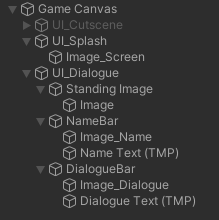
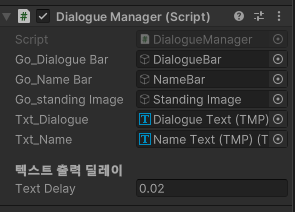
UI_Dialogue 및에 Dialogue Manager 스크립트를 추가한다.
다음과 같이 오브젝트를 추가해준다.
# 상호작용 이벤트 수정
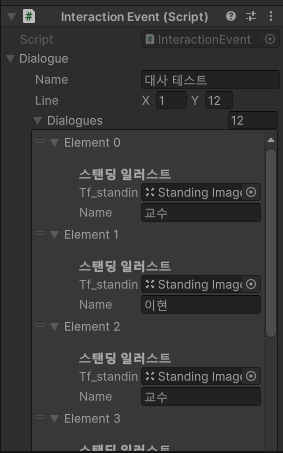
- 꺼내올 대사를 입력한다
- standing image 오브젝트를 Tf_standing에 드래그 해 전체 라인에 넣어준다.
동영상 서비스가 종료되어 해당 콘텐츠를 재생할 수 없습니다.